User guide
The EPICS Archiver Appliance offers a web UI for typical configuration tasks. This UI works best with a recent version of Firefox or Chrome.
Adding a PV to be archived
To add a PV to the archiver,
Go to the home page of the archiver appliance.
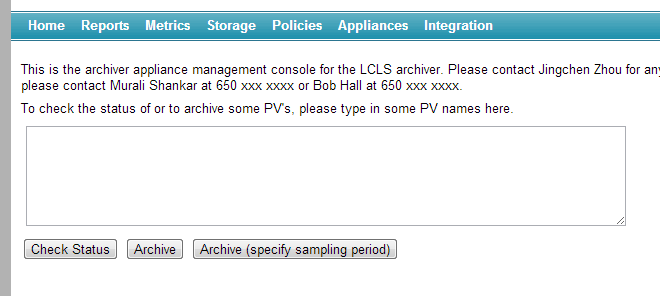
Enter any number of PV’s in the text area (one per line) and click on the
Archivebutton.If you wish to specify the sampling period, then click on the
Archive (specify sampling period)button instead.When adding a new PV to the cluster, the archiver appliance measures various parameters about the PV. This takes about 4-5 minutes during which the PV is in an
Initial sampling{.sample} state.Once the PV’s characteristics have been measured, the appliance assigns the PV to an appliance in the cluster and the PV transitions to a
Being archived{.sample} state.If the archiver appliance is not able to connect to a PV, the PV stays in the
Initial sampling{.sample} state until it is able to connect.You an request a PV to be archived before it is available on the network. The request to archive the PV is stored in the persistent configuration until the archiver appliance can connect. Once the archiver appliance is able to connect to the PV, it continues on the normal workflow (where various parameters about the PV are measured etc).
Using
Archive (specify sampling period), you can additionally specifyArchival method: Whether the archiver will use CA monitors/scan threads to sample at the specified sampling period.
Conditional archiving PV: The archiving for this PV is performed only when the conditional archiving PV’s
.VALfield is non-zero.Policy: The archiver appliance uses policies set up the administrator to configure how the PV is to be archived. You can override this by choosing a policy yourself. This lets your system administrator set up a set of policies and lets the user choose manually from among those policies.
To add a PVAccess PV, use the
pva://prefix. For example,pva://BMAD:SYS:CU_HXR:DESIGN:TWISSconnects to the PVBMAD:SYS:CU_HXR:DESIGN:TWISSover PVAccess
To check the status of a PV.
Enter any number of PV’s in the text area (one per line) and click on the
Check StatusbuttonYou can also enter GLOB expressions like
XCOR*and the archiver appliance will then display the status of all PV’s that match the GLOB expression.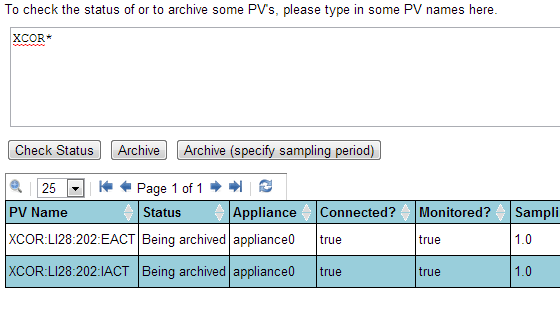
Note that the number of matched PV’s can be quite large; for now, no attempt is made to restrict the number of entries in this particular request. This may change in the future based on user feedback.
Retrieving data using CS-Studio, Archive Viewer and Matlab
To retrieve data using the CS-Studio, see the CS-Studio section.
To retrieve data using the Archive Viewer, see the Archive Viewer section.
To retrieve data using Matlab, see the Matlab section.
Retrieving data using other tools
The EPICS Archiver Appliance supports data retrieval in multiple formats/MIME types. These are some of the few formats supported today; more can easily be added as needed.
JSON - A generic JSON format that can be easily loaded into most browsers using Javascript.
CSV - Can be used for importing into Excel and other spreadsheets.
MAT - This is the file format used for interoperating with Matlab.
RAW - This is a binary format used by the Archive Viewer and is based on the PB/HTTP protocol.
TXT - A simple text format that is often helpful for debugging.
SVG - A XML format that can also be used as a SVG element in tools that support this format.
In general, getting data into a tool necessitates construction of a data retrieval URL as the first step. A data retrieval URL looks something like so
where
http://archiver.slac.stanford.edu/retrievalis thedata_retrieval_urlelement from yourappliances.xml/data/getDatais the path into the data retrieval servlet and is fixed..jsonidentifies the MIME-type of the returned data.The remainder consists of parameters (all of which need to be URL encoded for correctness)
pv- This identifies the name of the PV for which data is requested.from- This is the start time of the data in ISO 8601 format; specifically this format.to- This is the end time of the data in the same format.Optional parameters
fetchLatestMetadata- If true, an extra call is made to the engine as part of the retrieval to get the latest values of the various fields (DESC, HIHI etc).retiredPVTemplate- If specified, the archiving information (PVTypeInfo) for the PV specified in this parameter is used as a template for PVs that do not exist in the system. This is intended principally for use with legacy PVs (PVs that no longer exist on the LAN and do not have a PVTypeInfo).For example, all the data for legacy PV’s could be consolidated into yearly partitions and stored on tape.
When a user places a request for this data, it could be restored to some standard folder, for example /arch/tape.
A template PV (probably paused), for example,
TEMPLATE:PVis added to the system with one of its stores pointing to /arch/tape.For all data retrieval requests, this template PV is specified as the value of the
retiredPVTemplateargument. For example, _http://archiver.slac.stanford.edu/retrieval/data/getData.json?_`pv=LEGACY:PV`_&from=2012-09-27T08%3A00%3A00.000Z&to=2012-09-28T08%3A00%3A00.000Z_&`retiredPVTemplate=TEMPLATE:PV`.Because the archiver does not find a PVTypeInfo for
LEGACY:PV, it uses the PVTypeInfo forTEMPLATE:PVto determine data stores for theLEGACY:PV.The data in /arch/tape is used to fulfill the data retrieval request.
Once the user is done with the data for
LEGACY:PV, the data in /arch/tape can be deleted.
timeranges- Get data for a sequence of time ranges. Time ranges are specified as a comma-separated list if ISO 8601 strings.donotchunk- Use this to skip HTTP chunking of the response. This is meant for client that do not understand chunked responses.ca_count- This is passed on to an external ChannelArchiver as the value of the count parameter in the archiver.values XMLRPC call. The limits the number of samples returned from the ChannelArchiver; id unspecified, this defaults to 100000. If this is too large, you may timeouts from the ChannelArchiver.ca_how- This is passed on to an external ChannelArchiver as the value of the how parameter in the archiver.values XMLRPC call. This defaults to 0; that is, by default, we ask for raw data.
The response typically contains
seconds- This is the Java epoch seconds of the EPICS record processing timestamp. The times are in UTC; so any conversion to local time needs to happen at the client.nanos- This is the nano second value of the EPICS record processing timestamp.Other elements - This set includes the value, status, severity and many other optional fields stored by the appliance.
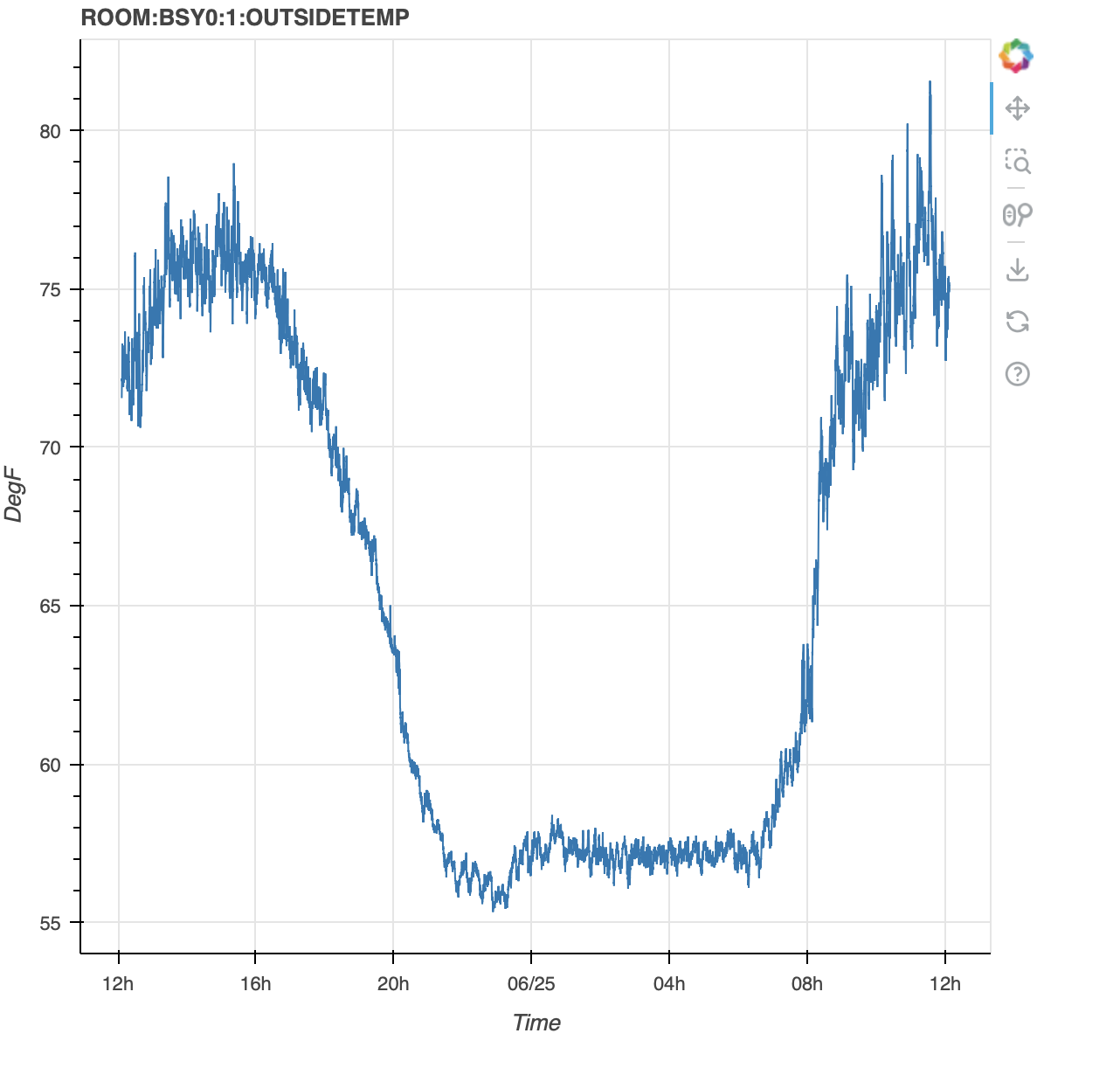
Here’s an example of loading data into Python in a Jupyter notebook and using Bokeh to display the data
from datetime import datetime, timedelta
import pytz
import json

import requests
from bokeh.plotting import figure, show
from bokeh.io import output_notebook

utc = pytz.utc
tz = pytz.timezone('America/Los_Angeles')
end = datetime.now().astimezone(utc)
start = end - timedelta(days=1)
pvName = "ROOM:BSY0:1:OUTSIDETEMP"

resp = requests.get("http://archappl.epics-controls.org/retrieval/data/getData.json",
        params={
            "pv": pvName,
            "from": start.strftime('%Y-%m-%dT%H:%M:%S.%fZ'),
            "to": end.strftime('%Y-%m-%dT%H:%M:%S.%fZ'),
        })
resp.raise_for_status()
samples = resp.json()[0]["data"]
egu = resp.json()[0].get("meta", {}).get("EGU", "")
xpoints = [datetime.fromtimestamp(x["secs"]).astimezone(tz) for x in samples]
ypoints = [x["val"] for x in samples]

output_notebook()

fig = figure(title=pvName, x_axis_label='Time', x_axis_type='datetime', y_axis_label=egu)
fig.line(xpoints, ypoints)
show(fig)
Processing of data
The EPICS archiver appliance has limited support for performing some processing on the data during data retrieval. For most scientific data processing purposes, a tool such as Matlab is a much better fit. To retrieve data within Matlab, please see the Matlab section.
To process the data during data retrieval, specify the operator during
the call to getData. For example, to get the mean of the PV
test:pv:123, ask for
http://archiver.slac.stanford.edu/retrieval/data/getData.json?pv=mean(test%3Apv%3A123).
This mechanism should work within the ArchiveViewer as well. That is, if
you plot mean(test:pv:123) in the ArchiveViewer, the EPICS archiver
appliance applies the mean operator to the data for PV test:pv:123
before returning it to the client. To plot test:pv:123 with the
mean_3600 operator in the ArchiveViewer, plot
mean_3600(test:pv:123).
The EPICS archiver appliance uses Apache Commons Math for its data
processing. Many operators bin the data into bins whose sizes are
specified as part of the operator itself. For example, the mean_3600
operator bins the data into bins that are 3600 seconds wide. The default
binning interval is 900 seconds (15 minutes). The binning is done using
the integer division
operator. Two samples belong to the same bin if the quotient of the
sample’s epoch seconds after integer division by the binning interval
is the same. For example, in the case of mean_3600, two samples S1
and S2 belong to the same bin if
S1.epochSeconds/3600 = S2.epochSeconds/3600 where / represents the
quotient after integer division. Samples belonging to the same bin are
gathered together and sent thru various statistics operators.
- firstSample
Returns the first sample in a bin. This is the default sparsification operator.
- lastSample
Returns the last sample in a bin.
- firstFill
Similar to the firstSample operator with the exception that we alter the timestamp to the middle of the bin and copy over the previous bin’s value if a bin does not have any samples.
- lastFill
Similar to the firstFill operator with the exception that we use the last sample in the bin.
- mean
Returns the average value of a bin. This is computed using SummaryStatistics and is SummaryStatistics.getMean()
- min
Returns the minimum value in a bin. This is computed using SummaryStatistics and is SummaryStatistics.getMin()
- max
Returns the maximum value in a bin. This is computed using SummaryStatistics and is SummaryStatistics.getMax()
- count
Returns the number of samples in a bin. This is computed using SummaryStatistics and is SummaryStatistics.getN()
- ncount
Returns the total number of samples in a selected time span.
- nth
Returns every n-th value…
- median
Returns the median value of a bin. This is computed using DescriptiveStatistics and is DescriptiveStatistics.getPercentile(50)
- std
Returns the standard deviation of a bin. This is computed using SummaryStatistics and is SummaryStatistics.getStandardDeviation()
- jitter
Returns the jitter (the standard deviation divided by the mean) of a bin. This is computed using SummaryStatistics and is SummaryStatistics.getStandardDeviation()/SummaryStatistics.getMean()
- ignoreflyers
Ignores data that is more than the specified amount of std deviation from the mean in the bin. This is computed using SummaryStatistics. It takes two arguments, the binning interval and the number of standard deviations (by default, 3.0). It filters the data and returns only those values which satisfy
Math.abs(val - SummaryStatistics.getMean()) <= numDeviations*SummaryStatistics.getStandardDeviation()- flyers
Opposite of ignoreflyers - only returns data that is more than the specified amount of std deviation from the mean in the bin.
- variance
Returns the variance of a bin. This is computed using SummaryStatistics and is SummaryStatistics.getVariance()
- popvariance
Returns the population variance of a bin. This is computed using SummaryStatistics and is SummaryStatistics.getPopulationVariance()
- kurtosis
Returns the kurtosis of a bin - Kurtosis is a measure of the peakedness. This is computed using DescriptiveStatistics and is DescriptiveStatistics.getKurtosis()
- skewness
Returns the skewness of a bin - Skewness is a measure of the asymmetry. This is computed using DescriptiveStatistics and is DescriptiveStatistics.getSkewness()
- linear
Implements the Linear arithmetic mean across an interval
- loess
Implements the Loess arithmetic mean across an interval
- optimized
Expects one parameter at initialization, which is the number of requested points. If there are less samples in the time interval than requested (with a certain deadband), all samples will be returned. If there are more samples than requested, the samples will be collected into bins. Mean, std, min, max and count of each bin is calculated and returned as a single sample.
- optimLastSample
This differs from the
optimizedpost processor in that if a bin is empty, instead of repeating the last bin with samples, the bin uses the last value of the last recorded sample instead (as mean, min and max; stddev is zero and number of samples is also zero).- caplotbinning
Approx implementation of ChannelArchiver plotbinning
- deadBand
The intent is to mimic ADEL; this is principally targeted at decimation.
- errorbar
Similar to the mean operator; in addition, the stdz is passed in as an extra column
Save/Restore API
The EPICS Archiver Appliance has a separate API targeted at getting the
value of several PV’s as of a point in time. This is primarily aimed at
save/restore applications where the archiver is often used as quality
control. To get data for multiple PV’s as of a point in time, POST a
JSON list of PV names to
http://archiver.slac.stanford.edu/retrieval/data/getDataAtTime?at=2018-10-19T15:22:37.000-07:00amp;includeProxies=true
where
at- This specifies the point in time in ISO8601 format.includeProxies- Optional; set this to true if you want to fetch data from external archiver appliances as part of this call. This defaults to false, so, by default, we do not proxy external appliances for this API call. As of now, we also do not support Channel Archiver integration for this API call.searchPeriod- Optional argument to control how far back in time to go to find data. Defaults to about a month. EAA uses a chunked data store; this argument determines which chunks to include in the search. The syntax is as specied injava.time.Period.parse, for example, to specify a year, useP365D.
The response is a JSON dict of dicts with the name of the PV as the key.
For example, here’s a call asking for the value of a few PV’s as of
2018-10-22T10:40:00.000-07:00
    $ curl -H "Content-Type: application/json"  -XPOST -s "http://localhost:17665/retrieval/data/getDataAtTime?at=2018-10-22T10:40:00.000-07:00&includeProxies=true" -d '["VPIO:IN20:111:VRAW", "ROOM:LI30:1:OUTSIDE_TEMP", "YAGS:UND1:1005:Y_BM_CTR", "A_nonexistent_pv" ]'
    {
        "ROOM:LI30:1:OUTSIDE_TEMP": {
            "nanos": 823158037,
            "secs": 1540229999,
            "severity": 0,
            "status": 0,
            "val": 60.358551025390625
        },
        "VPIO:IN20:111:VRAW": {
            "nanos": 754373158,
            "secs": 1540229999,
            "severity": 0,
            "status": 0,
            "val": 5.529228687286377
        },
        "YAGS:UND1:1005:Y_BM_CTR": {
            "nanos": 164648807,
            "secs": 1537710595,
            "severity": 0,
            "status": 0,
            "val": 0.008066000000000002
        }
    }
Reports
The EPICS Archiver Appliance supports a wide variety of reports based on static and dynamic information. These reports can also be accessed from within scripting languages like python and can be used to facilitate automation and integration. Some reports that are currently available are
PV’s that may not exist - This report lists all the PVs in the cluster that have never connected. PVs whose names have typos in them would be included in this report.
Currently disconnected PVs - This report lists all the PVs in the cluster that have connected in the past but are currently disconnected; perhaps because their IOCs have been turned off.
Top PVs by event rate - These reports contain the PVs sorted by their actual event rate (descending).
Top PVs by storage rate - These reports contain the PVs sorted by their actual storage rate (descending).
Recently added PVs - These reports contain the PVs sorted by the creation timestamp of their PVTypeInfos (descending). PVs that were recently added show up first.
Recently modified PVs - These reports contain the PVs sorted by the modification timestamp of their PVTypeInfos (descending). PVs that were recently modified show up first.
PVs by lost/regained connections - These reports contain the PVs sorted by the number of times we’ve lost/re-established the CA connection. This can be used to determine if an IOC is being overwhelmed (perhaps by all the archiving targeted at it).
PVs by last known timestamp - These reports contain the PVs sorted by the timestamp of the last event received.
PVs by dropped events from incorrect timestamps - The EPICS archiver appliance discards events that have invalid timestamps. These reports contain the PVs sorted by the number of events dropped because they had invalid timestamps. Events are dropped in these conditions.
If the record processing timestamp from the IOC is before the PAST_CUTOFF_TIMESTAMP. PAST_CUTOFF_TIMESTAMP defaults to
1991-01-01T00:00:00.000ZIf the record processing timestamp from the IOC is after (Appliance Current Time + SERVER_IOC_DRIFT_SECONDS) in the future. SERVER_IOC_DRIFT_SECONDS defaults to 30*60.
If the record processing timestamp from the IOC is before the timestamp of the previous sample.
If the record processing timestamp from the IOC is identical to the timestamp of the previous sample.
If the record processing timestamp from the IOC of samples from the second sample onwards are before the (Appliance Current Time - SERVER_IOC_DRIFT_SECONDS) in the past.
PVs by dropped events from buffer overflows - The EPICS archiver appliance discards events when the sampling buffers (as estimated from the sampling period) become full. These reports contain the PVs sorted by the number of events dropped because the sampling buffers were full.
Metrics
The EPICS Archiver Appliance maintains a wide variety of metrics to facilitate in capacity planning and load balancing. These metrics can be viewed in the Metrics page; a small subset of these metrics can be viewed across the cluster. To view more details about the metrics on a particular appliance, click on that appliance in the list view.
Storage
The EPICS Archiver Appliance supports multiple stages for storing data and allows for configuration of data stores on a per PV basis. The storage consumed across all PVs can be viewed in the Storage page.
Appliances
The EPICS Archiver Appliance maintains a days worth of CPU/heap usage statistics on a per appliance basis. These statistics can be viewed on the Appliances page.
Integrations
The EPICS Archiver Appliance supports limited integration with existing Channel Archiver installations.
To import ChannelArchiver
XMLconfiguration files, click on theChoose Filesbutton, select any number of ChannelArchiverXMLconfiguration files and pressUpload.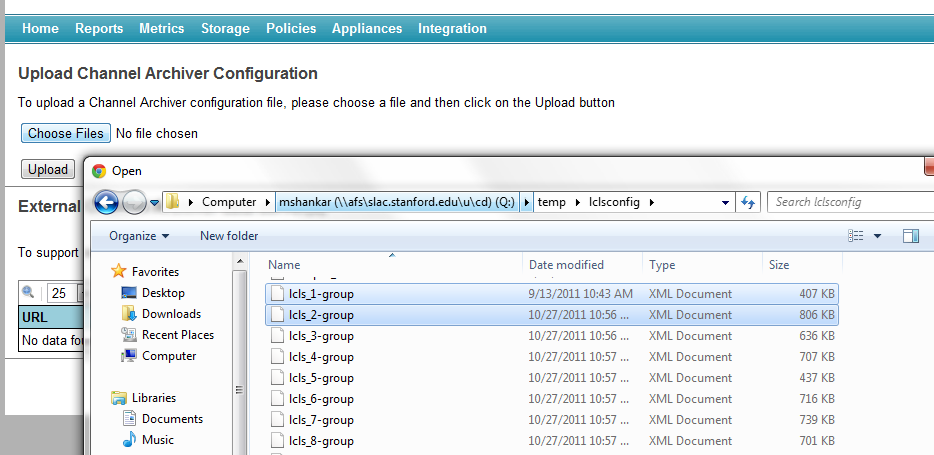
The
DTDfor the ChannelArchiverXMLfile can be found in the ChannelArchiver documentation or in the ChannelArchiver source distribution.To proxy data from existing ChannelArchiver
XML-RPCdata servers, add the URL to theXML-RPCdata server using theAddbutton. The EPICS Archiver Appliance uses thearchiver.namesmethod to determine the PVs that are hosted by the ChannelArchiverXML-RPCdata server and adds this server as a data source for these PVs.